iMessage Video Size & Length Limit on iPhone
Apple has never published a hard iMessage video limit — instead, large videos just fail to send, stall forever, or get quietly compressed into mush. Here's what actually controls whether your video goes through, and how to fix it.
Quick answer: There's no fixed number, but videos over roughly 100 MB start failing or stalling on iMessage, especially on cellular. Compress the clip yourself with Kompresso first — you control the quality instead of letting iMessage or your carrier crush it for you.
There's no official iMessage video limit — here's what actually happens
Unlike WhatsApp (16 MB) or standard email attachments (25 MB), Apple doesn't publish a fixed cap for iMessage video. What you'll actually run into is a soft ceiling: sends get slower and less reliable as file size climbs, and somewhere past roughly 100 MB, especially over cellular data, they start failing outright or spinning indefinitely. It's about file size, not the clock — a 20-second 4K 60fps clip can be heavier, and harder to send, than a 3-minute 1080p one.
If iMessage isn't available (green bubble / SMS-MMS fallback), the real limit drops off a cliff — many US carriers cap MMS attachments around 1–3 MB, so almost any video needs compressing first.
Does iMessage compress videos automatically?
Sometimes. Go to Settings → Messages and check Low Quality Image Mode. When it's on, iOS compresses photos and videos before sending to save data — which is why a video can arrive on the other end noticeably softer than what you shot. When it's off, iMessage tries to send closer to the original, which is also exactly why big originals are more likely to fail or crawl.
Either way, you're letting the OS decide the quality/size tradeoff for you. Compressing the clip yourself beforehand means you pick the bitrate and resolution, not a background setting.
How to send a long or large video on iMessage — step by step
- Check Low Quality Image ModeIn Settings → Messages, see whether it's on — that tells you whether iMessage is already compressing your sends automatically.
- Open Kompresso and pick your videoSelect the clip that's failing to send or taking forever.
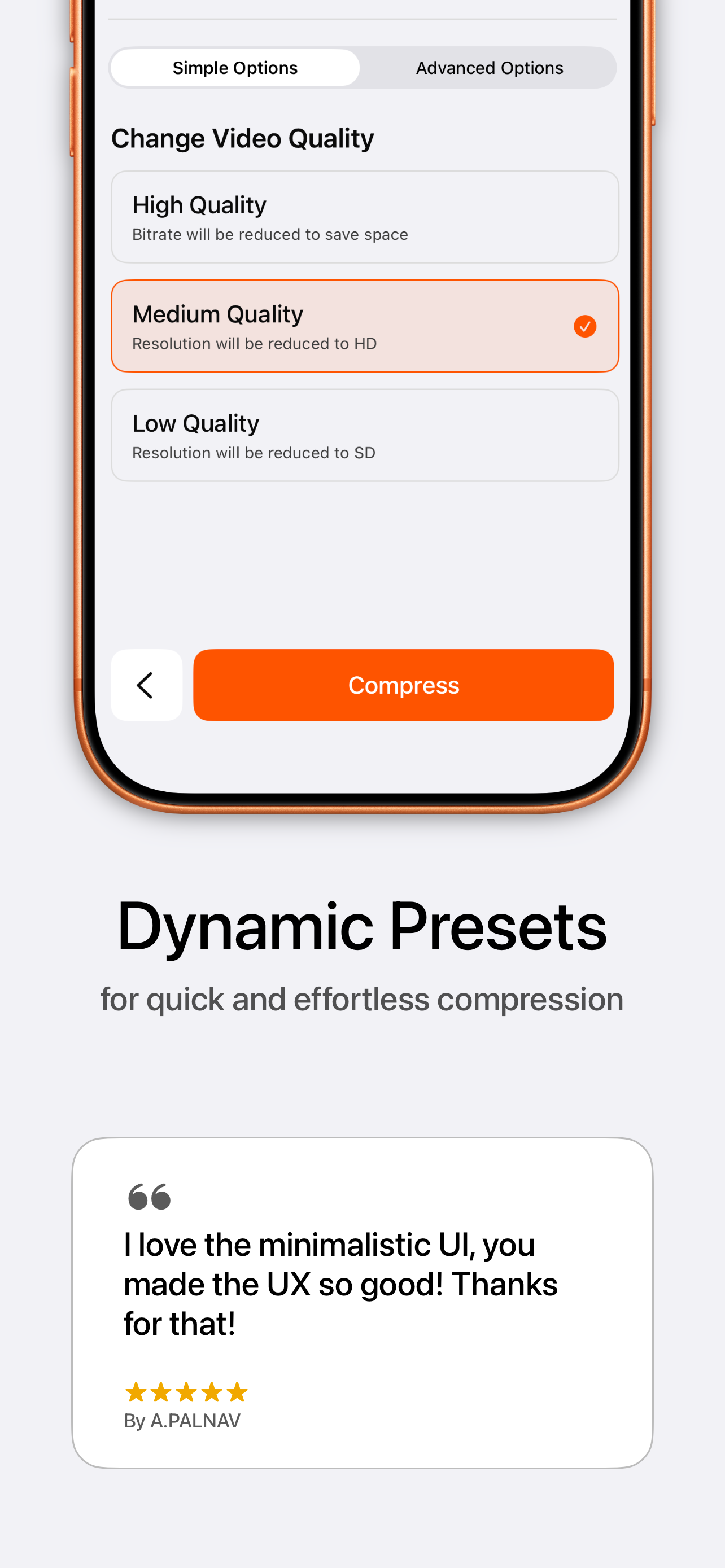
- Choose a presetMedium or Low gets most clips well under 100 MB while still looking sharp on a phone screen. Use Advanced to dial in resolution and bitrate directly.
- Compress, then send over Wi-FiTap Compress, then send from Photos or share straight into Messages. A strong connection matters as much as file size.

Free · offline · no watermark
Still won't send? What to check
- Green bubble instead of blue: you've fallen back to SMS/MMS, which has a much smaller carrier limit — compress harder, well under 5 MB.
- Weak signal: switch to Wi-Fi before resending; large attachments time out easily on cellular.
- Still huge after compressing: lower the resolution to 1080p or 720p instead of just trimming bitrate — pixel count matters more than length for iMessage reliability.
- Recipient not on iPhone: export as H.264 MP4 in Kompresso for guaranteed playback on Android and older devices.
Tip: If you're regularly sending clips over iMessage, a Medium preset around 1080p is the sweet spot — small enough to send fast and reliably, sharp enough that nobody notices the compression.