How to Reduce Video File Size Without Losing Quality
"Smaller" and "still looks great" are not opposites — you just have to compress the right way. Here are the exact settings to reduce a video's file size on iPhone while keeping the quality you can actually see.
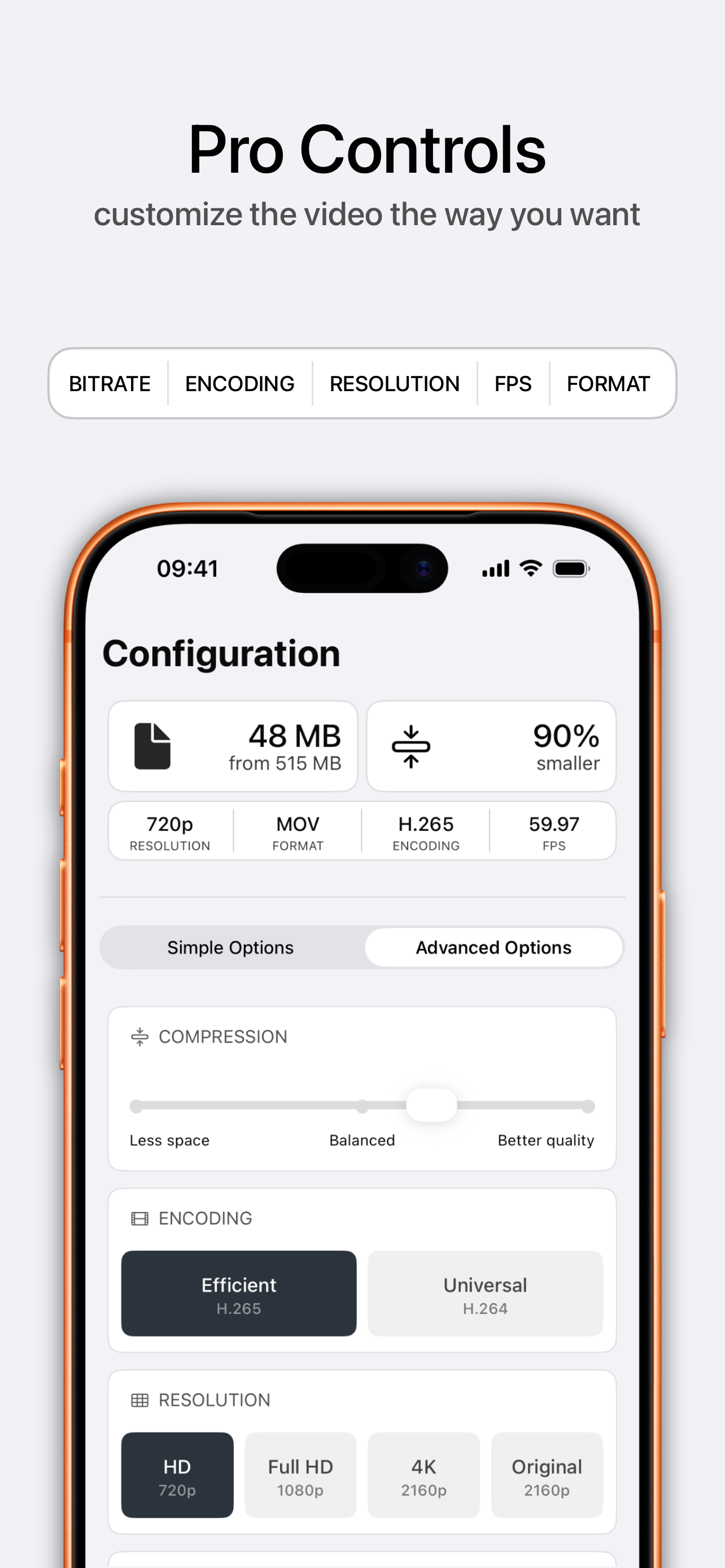
Quick answer: Use H.265 (HEVC), trim the bitrate rather than slashing resolution, and only drop from 60fps to 30fps. In Kompresso, set the compression slider to "Balanced" and export — smaller file, no visible loss.
The four levers of file size
Every compressor works with the same four controls. Understanding what each one costs you is the secret to shrinking a video without wrecking it:
- Bitrate — data per second. The single biggest lever. Modest cuts are invisible; extreme cuts cause blocky motion. Trim it first.
- Resolution — pixel dimensions (720p/1080p/4K). Lower resolution shrinks the file a lot, and 1080p still looks sharp on phones.
- Codec — H.265 (HEVC) fits the same quality in ~50% less space than H.264. Use it whenever compatibility allows.
- Frame rate — 60fps → 30fps roughly halves motion data and is imperceptible for most footage.
The quality-preserving recipe
- Choose H.265 (Efficient) encodingThis alone shrinks the file by up to half at matched quality. Use H.264 only if the recipient needs it.
- Keep resolution as high as the destination needsWatching on a phone? 1080p is perfect. Archiving? Keep the original. Don't downscale further than necessary.
- Trim the bitrate, don't slash itMove Kompresso's slider to 'Balanced' rather than 'Less space' — you shed megabytes without visible artifacts.
- Drop 60fps to 30fps if it's not actionHalves motion data with no perceptible difference for talking, scenery or everyday clips.

Free · offline · no watermark
What actually causes visible quality loss
Quality collapses when you push the bitrate too low for the motion in the scene — fast action and grain need more data. If you see blockiness, nudge the slider back toward quality or keep a higher resolution. Because Kompresso shows the projected size live, you can find the exact point where the file is small but still clean.
Rule of thumb: Change one lever at a time. Try H.265 first; if it is still too big, lower resolution one step; only then trim bitrate further.