Shrinking 4K Video on iPhone Without Losing Quality
4K footage looks incredible and eats storage alive — around 350–400 MB per minute at 60fps. Here is how to shrink and compress 4K video on iPhone so it stays sharp but fits your storage, email or upload.
Quick answer: In Kompresso you have two smart moves: keep 4K and lower the bitrate (max sharpness, smaller file), or scale to 1080p with H.265 (much smaller, still crisp on any screen). Pick based on where the video is going.
Why 4K files are so big
4K (2160p) packs four times the pixels of 1080p, and iPhones often shoot it at 60fps with a high bitrate. That is roughly 400 MB a minute — so a five-minute clip approaches 2 GB. Most of that detail is invisible on a phone screen and wasted when you upload to social apps that downscale anyway.
Two ways to compress 4K — which to choose
Keep 4K, lower the bitrate
If you are archiving or want to preserve full resolution, keep it at 2160p and reduce the bitrate. You will cut the file substantially with only a subtle quality change, because iPhone's default bitrate is generous.
Scale down to 1080p (or 720p)
For sharing, messaging, or anything watched on a phone, 1080p is the sweet spot — it looks crisp and can be a quarter of the size or less. 720p shrinks it even further for email and chat.
Compress a 4K video in Kompresso
- Open Kompresso and select the 4K clipPick the video from your library.
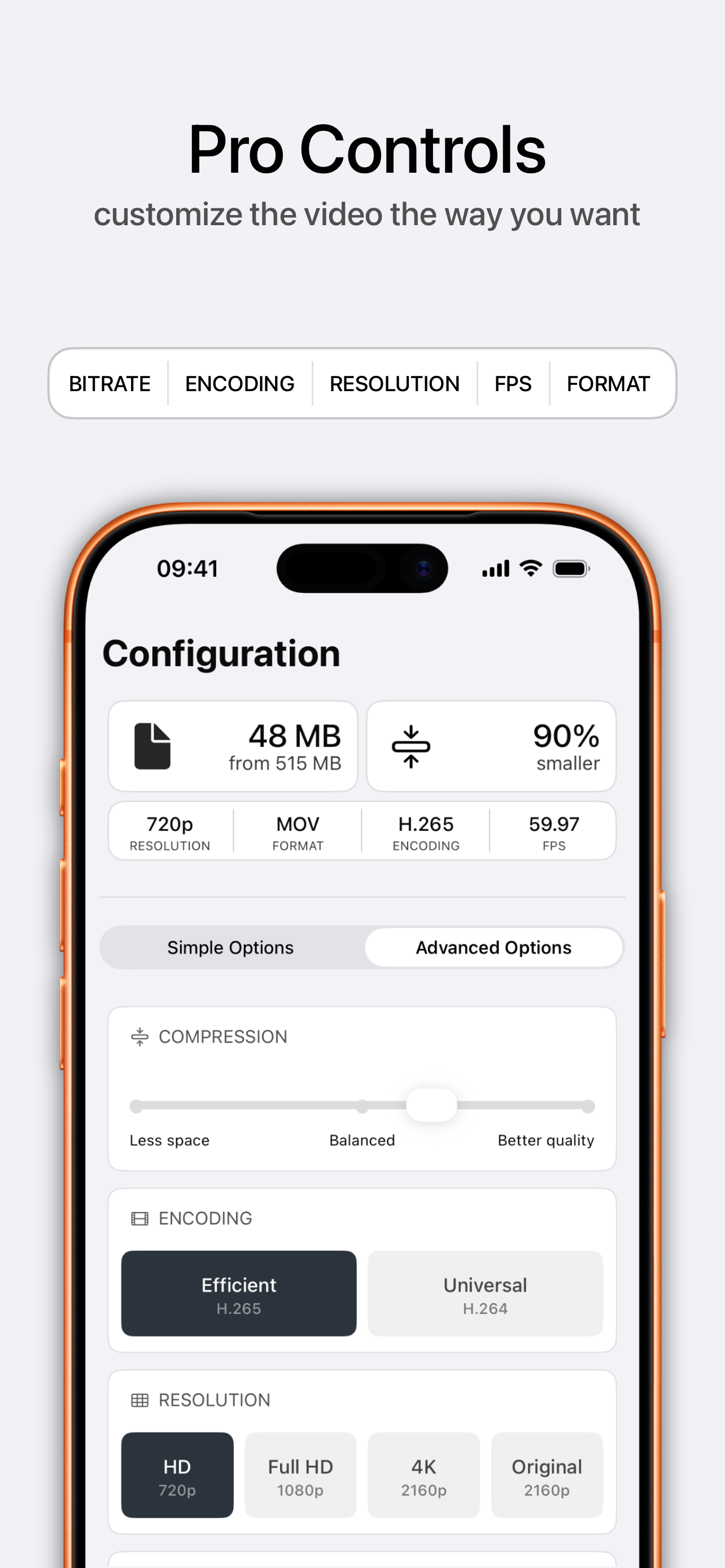
- Choose your resolutionOpen Advanced Options. Keep 4K (2160p) to preserve detail, or scale to Full HD 1080p / HD 720p for a much smaller file.
- Switch encoding to H.265 (Efficient)HEVC squeezes 4K down further at the same quality — perfect for large clips.
- Set the compression slider, then CompressSlide toward 'Balanced' or 'Less space', watch the projected size, and tap Compress. Save to Photos when done.

Free · offline · no watermark
Does compressing 4K ruin the quality?
No — done right it is barely noticeable. The key is not over-compressing: use H.265, keep a healthy bitrate, and only scale resolution as far down as the destination needs. For a deeper look at the exact settings, read how to reduce file size without losing quality.