How to Free Up iPhone Storage by Compressing Videos
If your iPhone storage is full, videos are almost certainly the culprit — they dwarf photos and apps. Compressing them in place can reclaim gigabytes without deleting a single memory.
Quick answer: Use Kompresso's batch mode to compress your biggest videos, turn on Delete Original, and reclaim the space instantly. Users report saving 20 GB+ this way.
Why videos fill your iPhone
A few minutes of 4K footage can equal thousands of photos. Because iPhones default to high-resolution, high-bitrate recording, your camera roll quietly becomes the largest thing on the device. The fix is not deleting the memories — it is storing them at a sensible size.
Find your biggest videos first
Open Settings → General → iPhone Storage to see what is using space, and sort your Photos by size or scroll to your longest clips. Those multi-hundred-megabyte 4K videos are where the easy gigabytes are hiding.
Compress and reclaim space in Kompresso
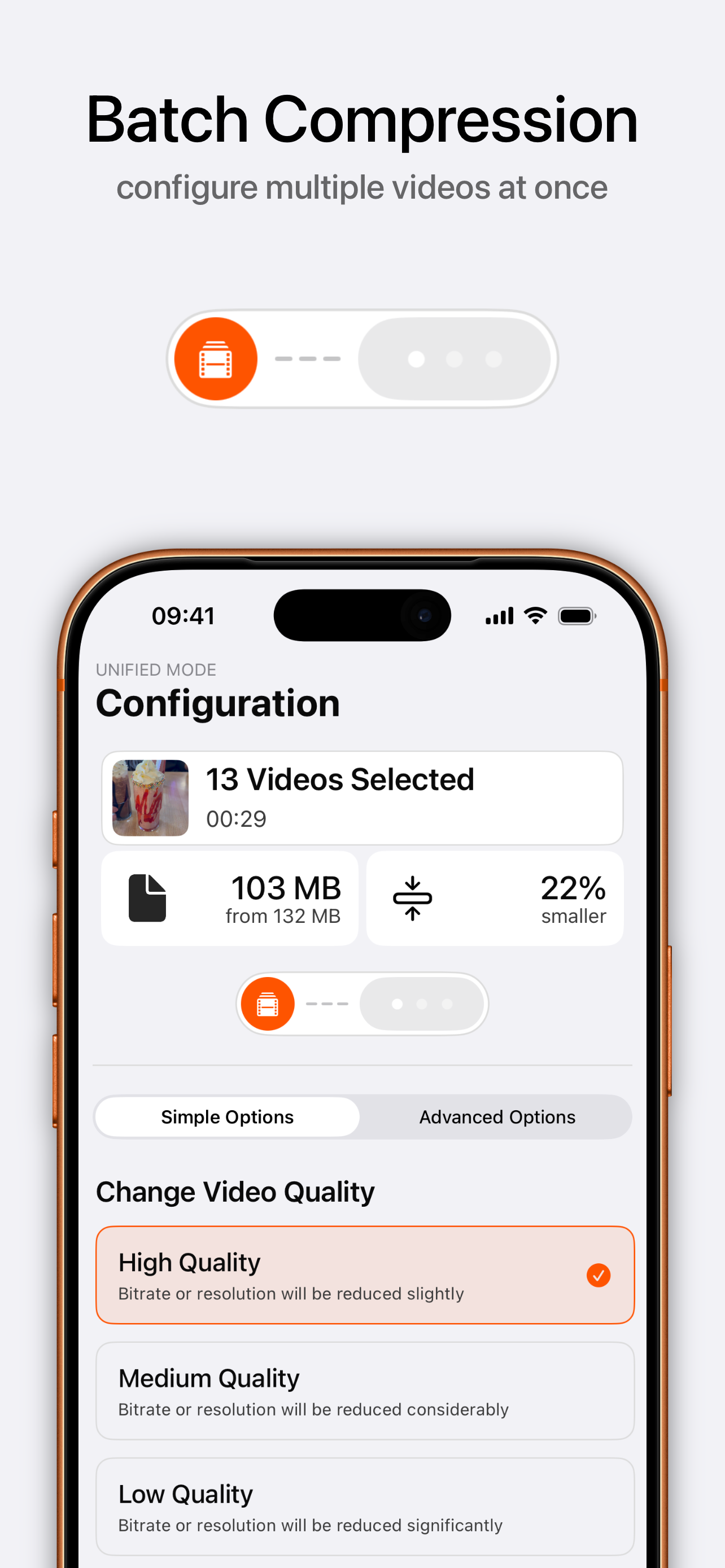
- Open Kompresso and select multiple videosUse batch mode to pick your largest clips all at once.
- Choose a space-saving configuration720p or 1080p with H.265 keeps them watchable while cutting size dramatically. Push the slider toward 'Less space'.
- Compress the batchKompresso processes them together using the hardware encoder — fast and low on battery.
- Enable Delete OriginalToggle Delete Original so the full-size clips are removed as the compressed versions save, instantly freeing the space.

Free · offline · no watermark
How much space will I get back?
Typically 50–90% per video. Compressing a library of 4K clips to 1080p H.265 routinely frees tens of gigabytes — one Kompresso reviewer noted saving over 20 GB. Do it in batches and empty your Photos "Recently Deleted" album afterward to finalize the reclaim.
Tip: After compressing, go to Photos → Recently Deleted and clear it so the originals actually leave your device.