How to Batch Compress Multiple Videos on iPhone
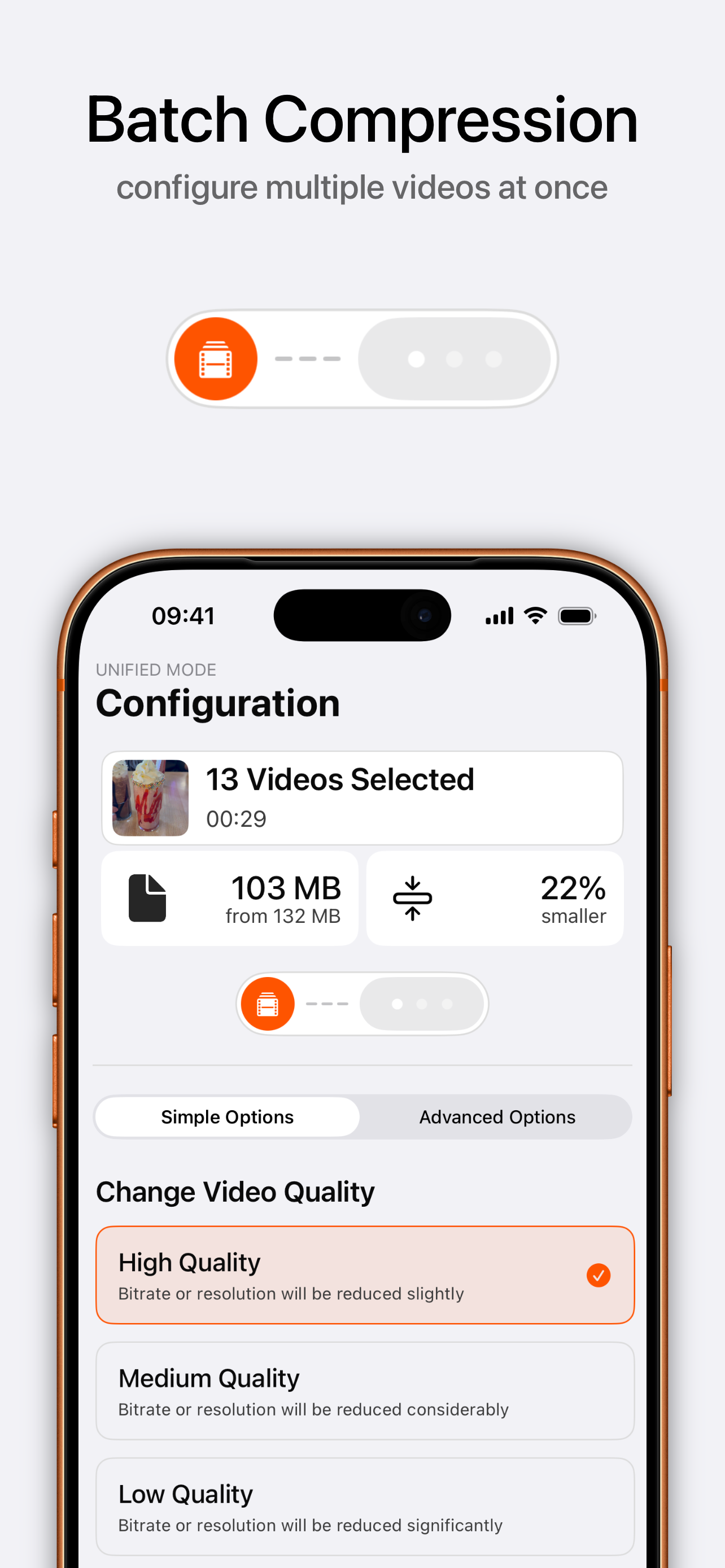
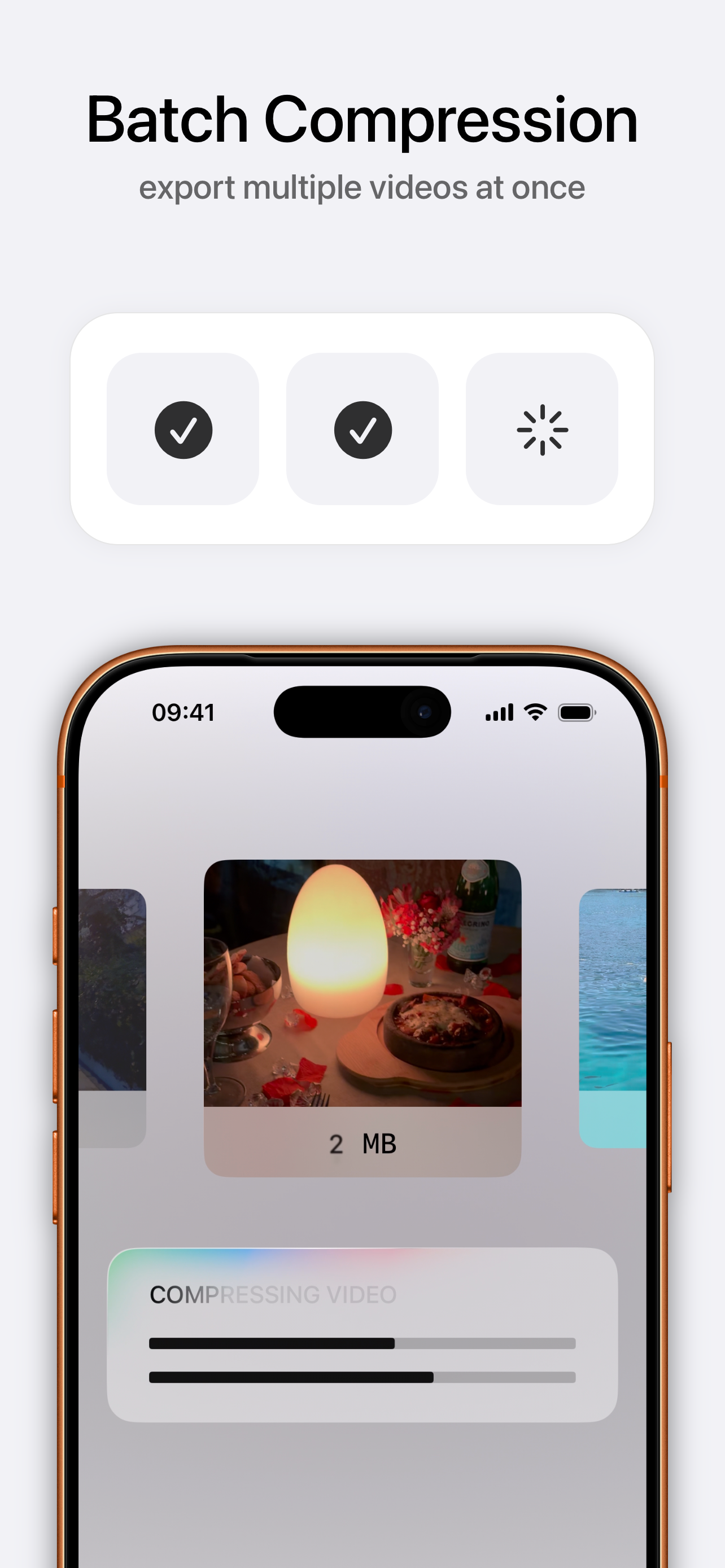
Compressing videos one at a time is tedious. Batch mode lets you select many clips, apply a single configuration, and export them all in one run — ideal for clearing space or prepping a folder of clips.
Quick answer: Open Kompresso, select multiple videos, choose one preset or advanced configuration for the whole set, and tap Compress. Every clip is processed and exported together.
When to batch compress
- Freeing up storage across dozens of large clips at once.
- Prepping a set of videos for upload or a client at a consistent size.
- Converting a whole folder from HEVC to H.264 MP4 for compatibility.
- Standardizing resolution and format across everything you shot on a trip.
Batch compress step by step
- Open Kompresso and select multiple videosTap to choose several clips from your library — Kompresso enters unified batch mode automatically.
- Set one configuration for the whole batchPick a preset, or use Advanced Options to set resolution, codec, format and the compression slider once for every clip.
- Review the combined savingsKompresso shows the total size and how much smaller the batch will be before you commit.
- Tap Compress and export allThe app processes each video with the hardware encoder and saves them together. Enable Delete Original to reclaim space as it goes.

Free · offline · no watermark
Batch tips for the best results
Group similar clips — batching all your 4K clips with one setting, and your 1080p clips with another, gives more predictable results than mixing everything. For a storage clear-out, pair batch mode with Delete Original; see how to free up iPhone storage by compressing videos.
Tip: Batch mode uses one configuration for the set. If a few clips need special handling, do those separately after the main batch.