How to Convert a Video to MP4 on iPhone (HEVC → H.264)
iPhones record in HEVC (H.265) by default, which is efficient but does not play on every device or website. Converting to an H.264 MP4 makes your video play and upload everywhere.
Quick answer: In Kompresso, open the clip, set Format to MP4 and Encoding to Universal (H.264), then tap Compress. You get a compatible MP4 that plays on Windows, Android, old browsers and upload forms.
HEVC vs H.264 — what's the difference?
H.265 (HEVC) is about 50% more efficient than H.264, so your iPhone stores the same quality in half the space. The catch is compatibility: older Windows PCs, some Android phones, editing software and web upload forms may refuse HEVC or show a black screen with no sound. H.264 in an MP4 container is the universal standard — it plays essentially everywhere.
When you should convert to H.264 MP4
- The video "won't play" on a Windows PC or an Android phone.
- An upload form or website rejects the file or shows a black screen.
- You are importing into older video editing software.
- You are emailing or messaging someone and want zero compatibility risk.
Convert to MP4 in Kompresso
- Open Kompresso and select the videoPick the HEVC clip you want to convert.
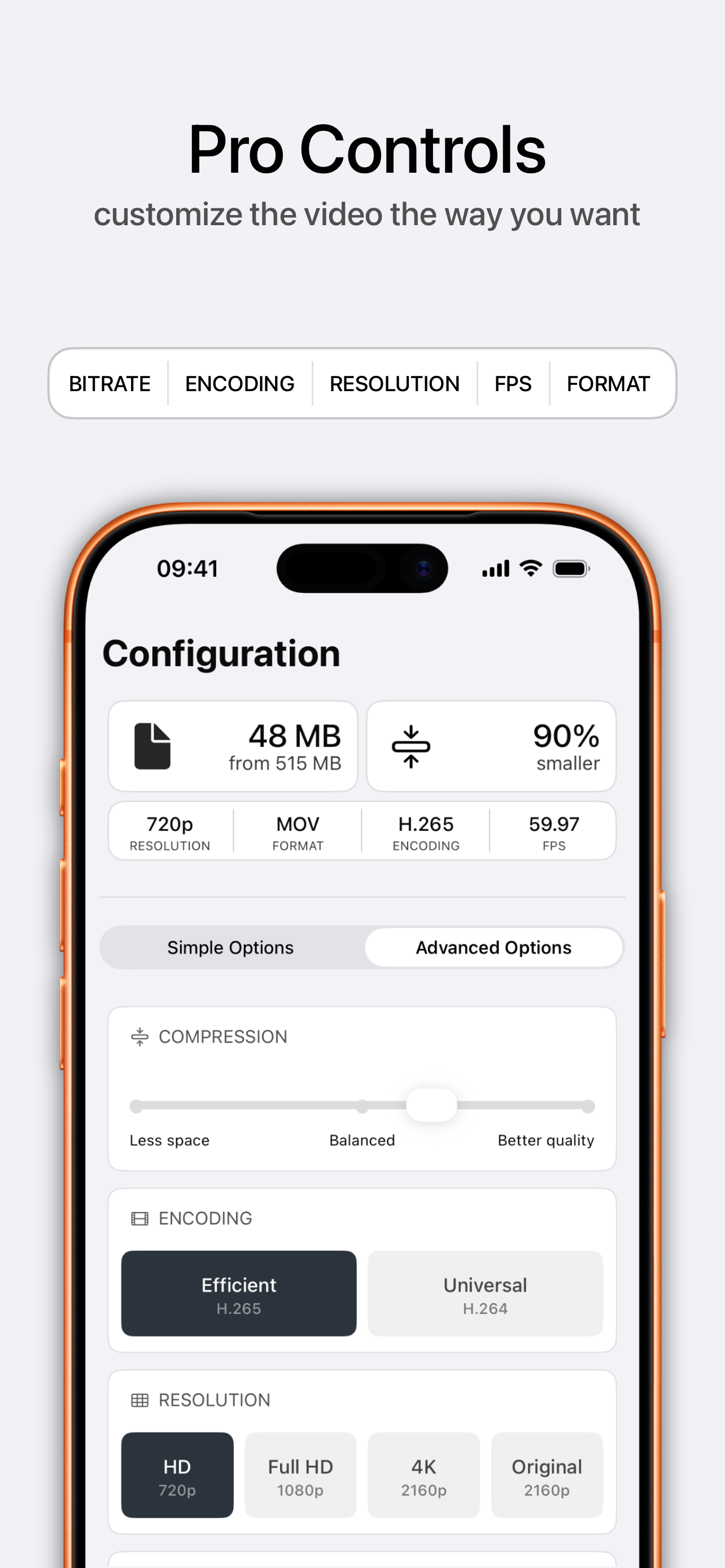
- Open Advanced OptionsSwitch from Simple to Advanced to reveal the format and codec settings.
- Set Format to MP4 and Encoding to Universal (H.264)This is the combination that plays everywhere. Keep the resolution the same if you only want to convert, not shrink.
- Tap Compress to exportKompresso re-encodes on-device and saves a universally compatible H.264 MP4 you can send or upload anywhere.

Free · offline · no watermark
Convert and shrink at the same time
Because Kompresso is a compressor first, you can convert to H.264 MP4 and reduce the size in one pass — just lower the resolution or bitrate while you change the codec. That is ideal for uploads that have both a format and a size limit. Want to keep HEVC for the smallest files instead? Read reducing size without losing quality.
Note: Converting H.265 to H.264 at the same quality will make the file somewhat larger, because H.264 is less efficient. Lower the bitrate a little if you need to keep the size down.