How to Compress a Video for Email on iPhone
Email attachments are usually capped at 25 MB (Gmail, Outlook and iCloud Mail all sit around there), and iPhone videos blow past that instantly. Here is how to compress a video for email so it actually sends.
Quick answer: Open the video in Kompresso, drop the resolution to 720p (or pick the Medium/Low preset), tap Compress, and export a file under 25 MB. Attach it to your email as normal.
What is the email attachment size limit?
- Gmail: 25 MB per email (larger files switch to a Google Drive link).
- Outlook / Hotmail: 20 MB.
- Apple iCloud Mail: 20 MB (Mail Drop kicks in above that).
- Yahoo: 25 MB.
Because a short iPhone clip can easily be 100–500 MB, you need to compress it down first. Aim for a comfortable margin — target around 20 MB so the encoded email (which is slightly larger than the raw file) still fits.
Compress a video for email in Kompresso
- Open Kompresso and select the videoPick the clip you want to email from your Photos library.
- Lower the resolution to 720pIn Advanced Options set resolution to HD 720p, or just tap the Medium/Low preset. 720p is plenty sharp on a laptop or phone screen and shrinks the file the most.
- Check the projected sizeKompresso shows the new size before you compress. If it is still above ~20 MB, nudge the compression slider toward 'Less space' or drop the bitrate.
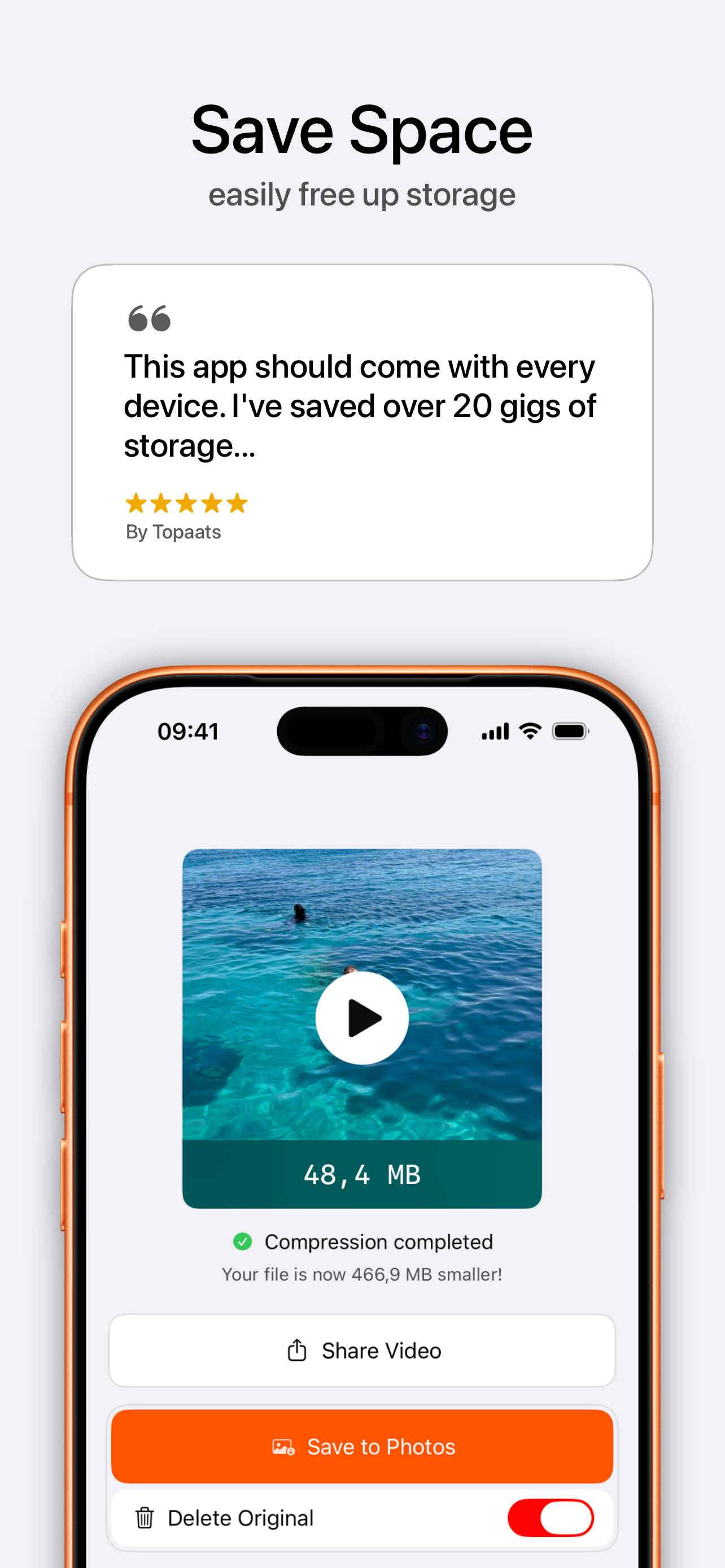
- Tap Compress, then ShareSave to Photos or use Share to attach it straight into Mail, Gmail or Outlook.

Free · offline · no watermark
Still too big? Try these
- Switch the codec to H.265 (HEVC) for roughly half the size at the same quality.
- Trim the frame rate from 60fps to 30fps — email recipients will not notice.
- For very long videos, split them or send the largest as a cloud link and email the rest.
Compatibility tip: If the recipient uses an older Windows PC, export as H.264 MP4 instead of HEVC so it plays everywhere. See how to convert a video to MP4.